1. Navigate to https://uptimecontroller.com/app/home
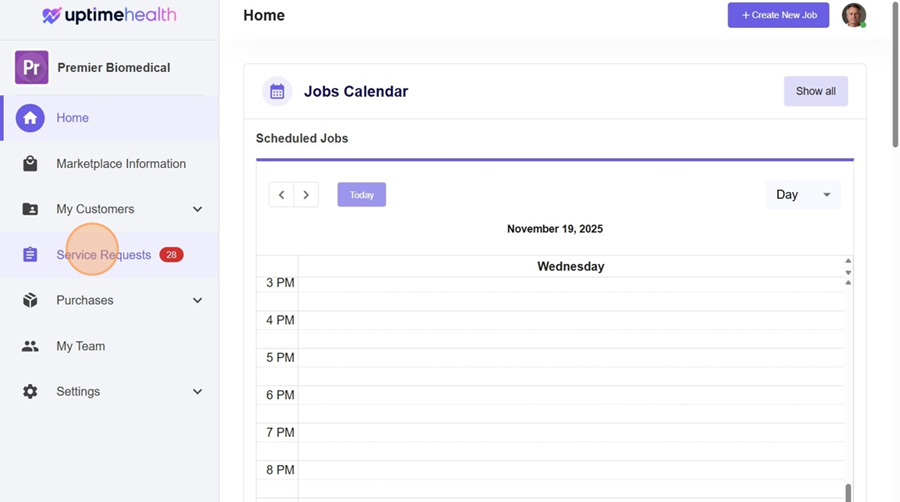
2. Click "Service Requests"
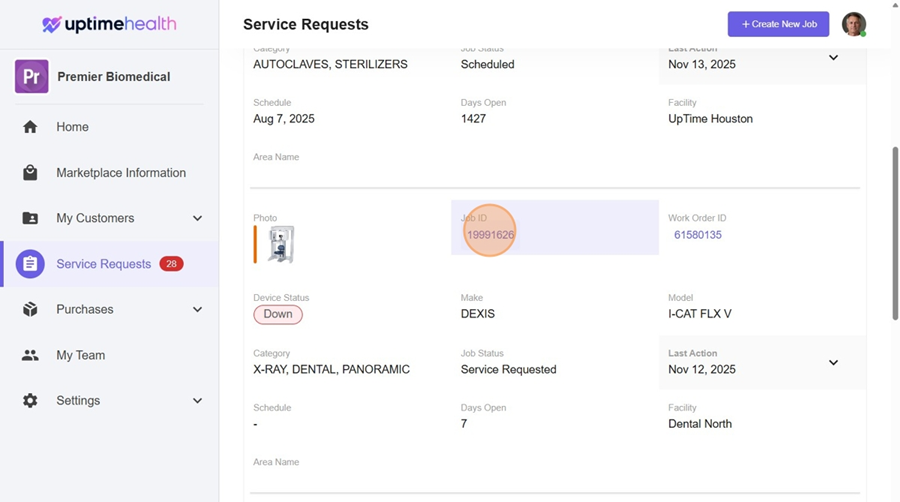
3. Identify which service request you are looking to create a quote from - You can do this by searching by Job # on the top search bar.
4. Click "Add from Catalog"
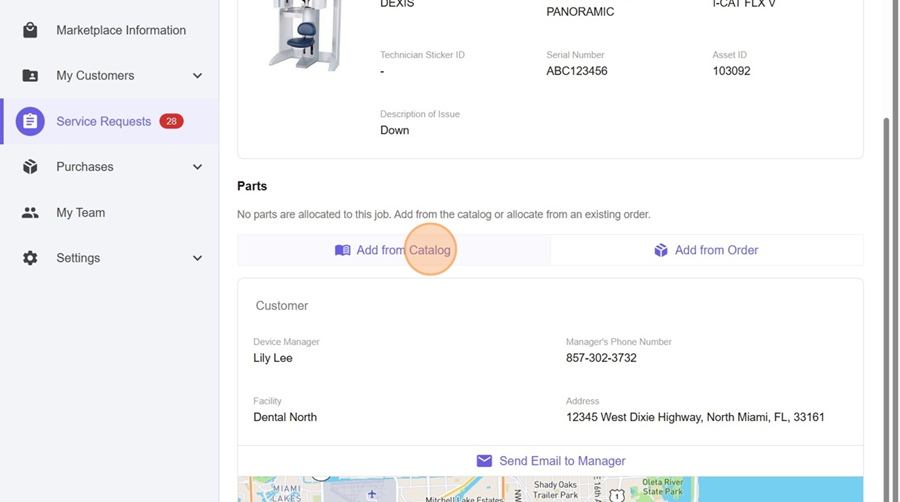
5. Click the "Search by Keyword, Part Number, or Description" field.
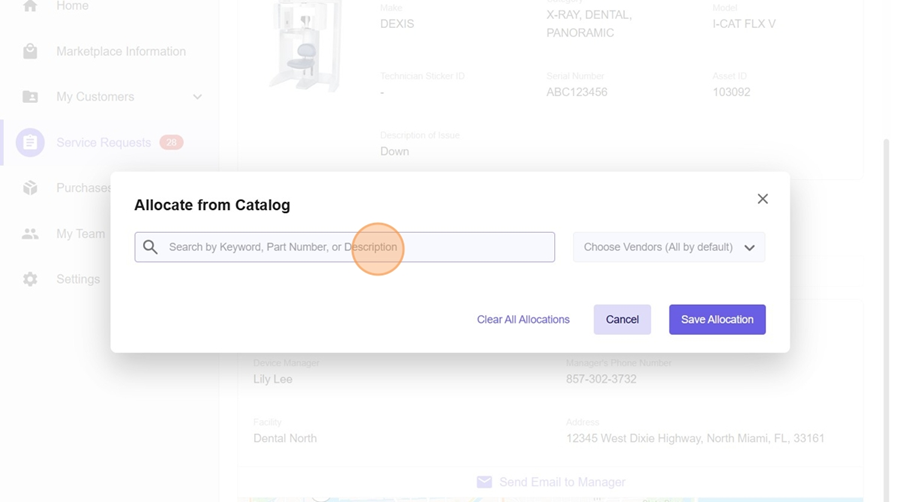
6. Type "Select the Part"
7. Click on the selected part needed.
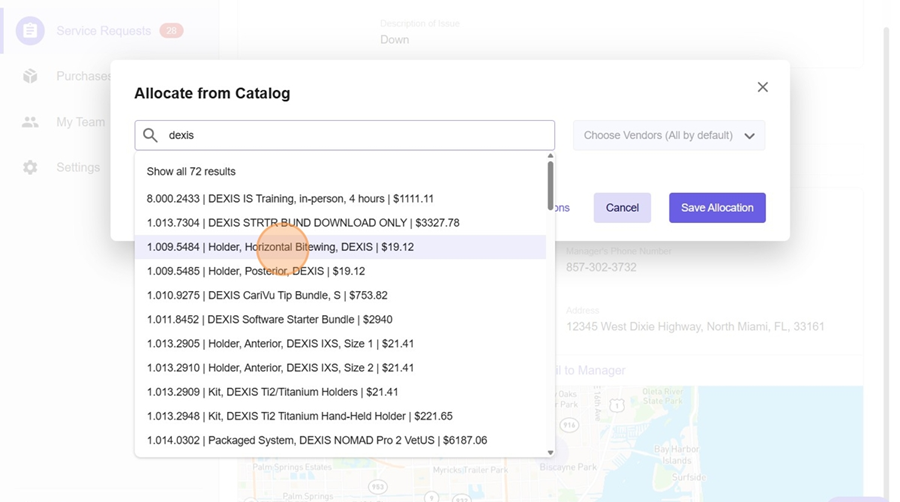
8. Click "Allocate Item"
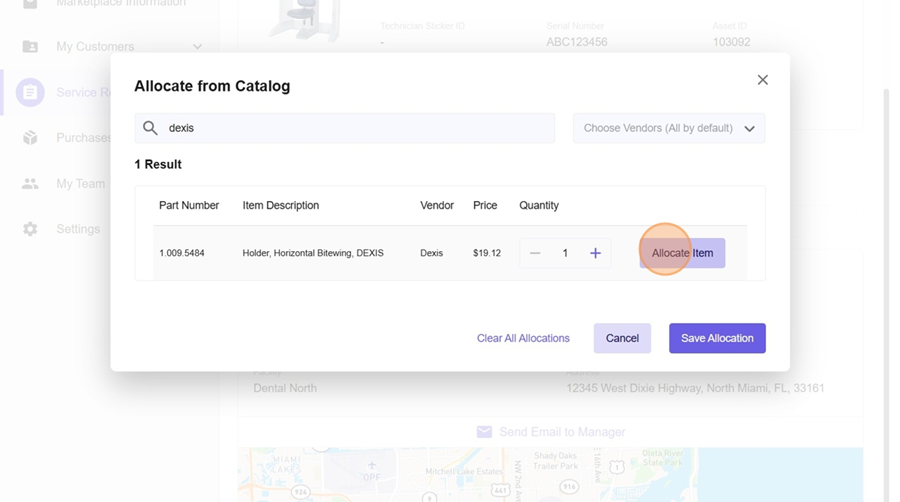
9. Click "Save Allocation" - This allocates this part to a job and allows you to:
- Send the Quote & Order the Part
- Send the Quote for an Existing Part you have in Stock
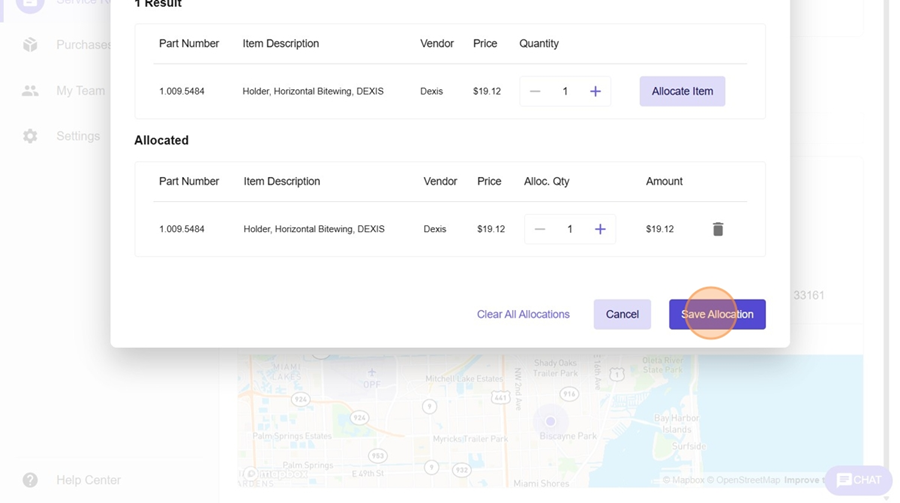
10. Click "Create Order from Catalog Parts" -This will bring you to your orders page.
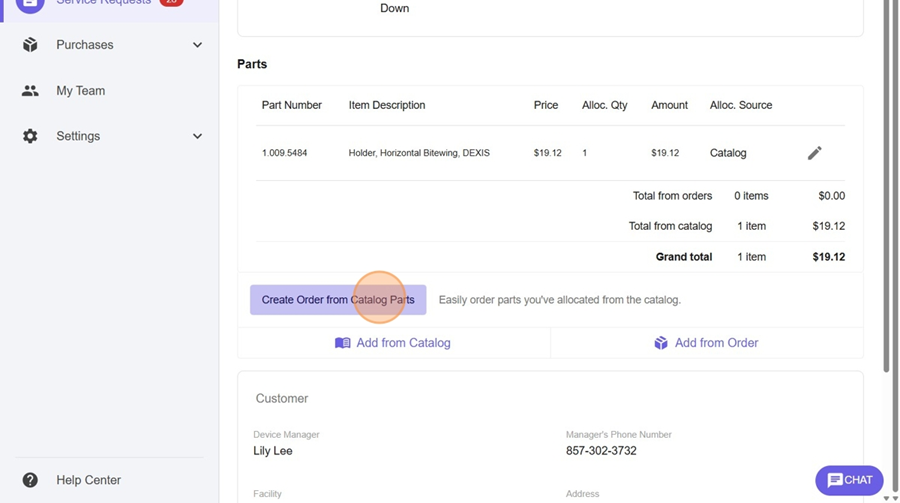
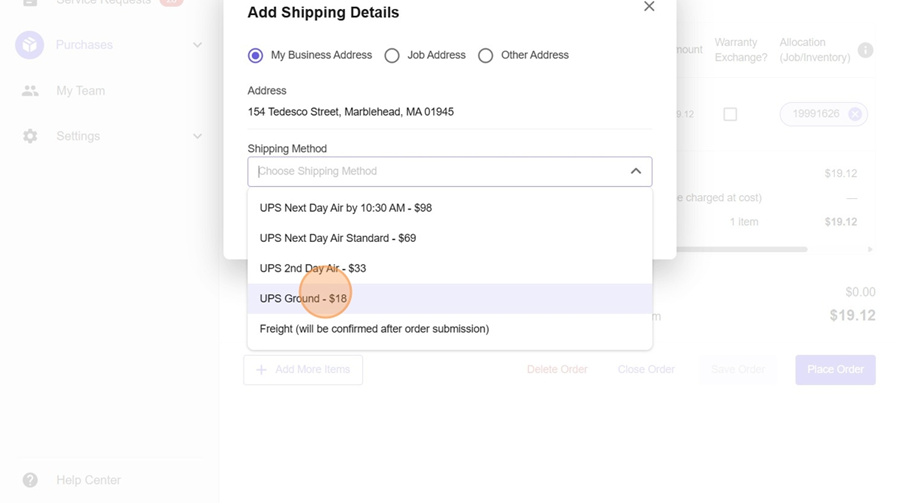
11. Click "Add Shipping Details"
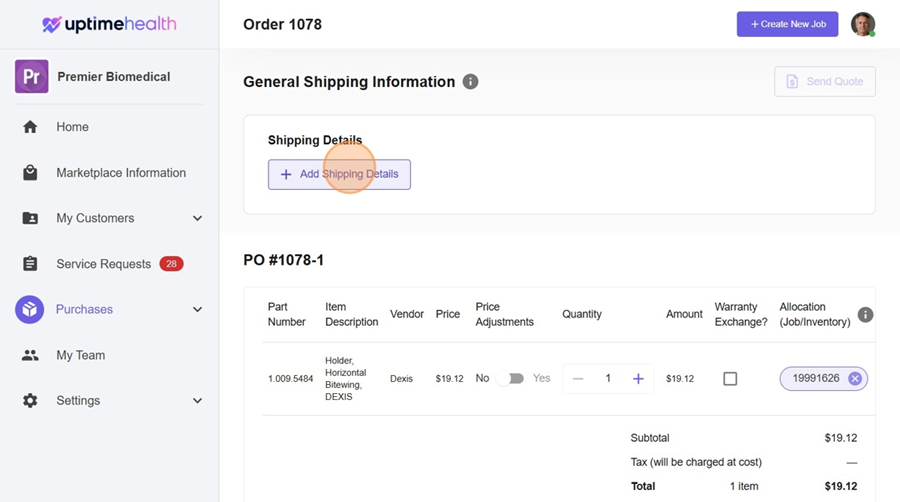
12. Click the on which shipping location you would like to include "My Business Address", "Job Address" or "Other Address"
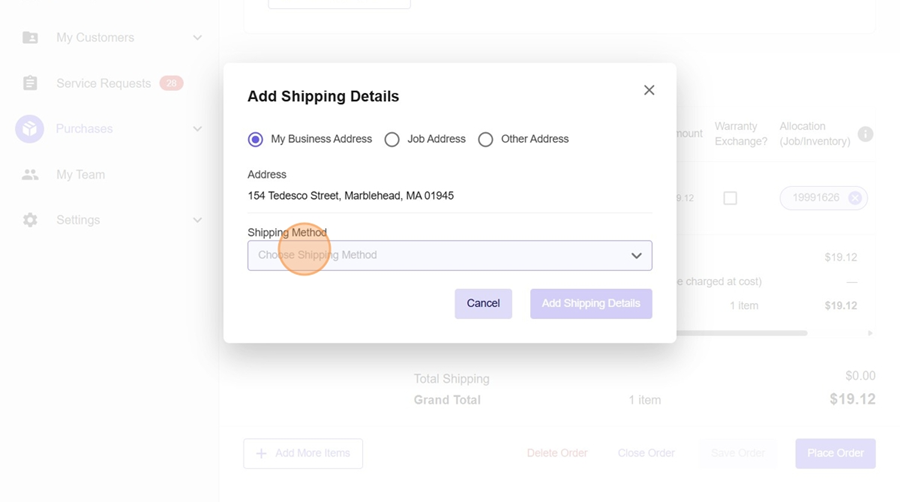
13. Select your Shipping Method
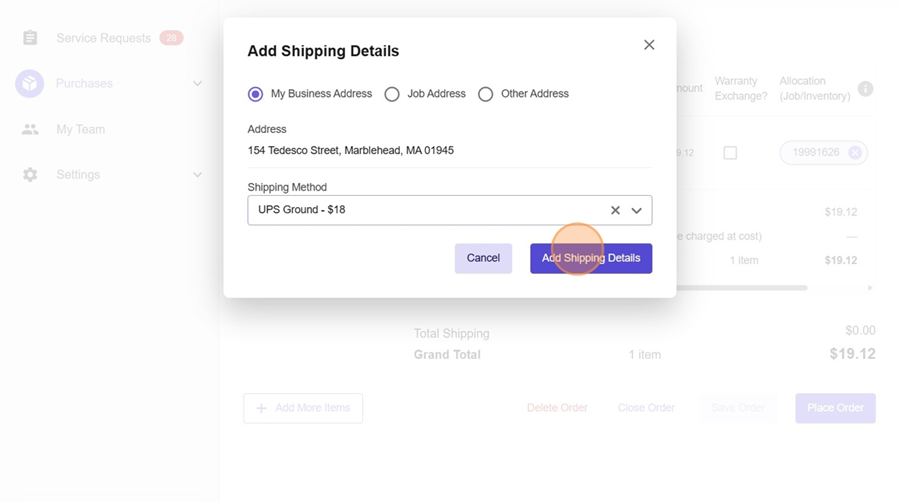
14. Click "Add Shipping Details"
How to Add Labor or Travel Line Items to your Quote
15. Click "Add More Items" if you need to add more parts OR to add a Labor and/or Travel Line Item for Quoting.
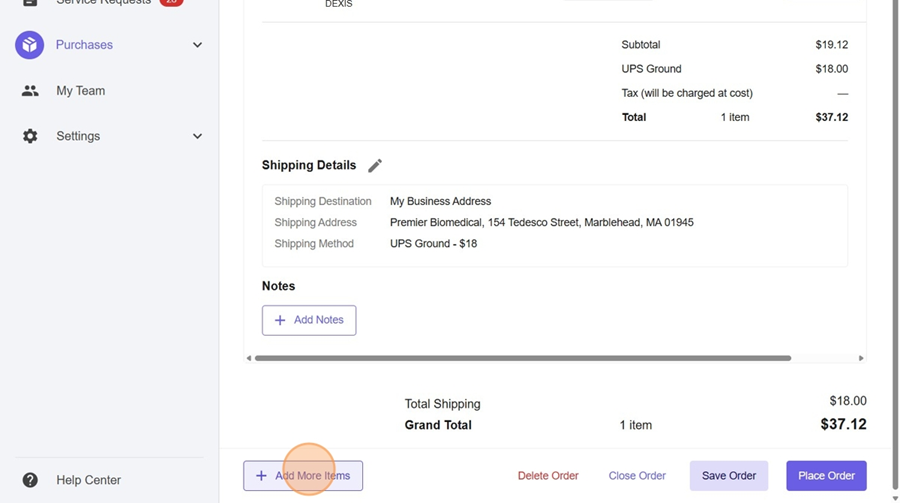
16. Click the "Search by Keyword, Part Number, or Description" field.
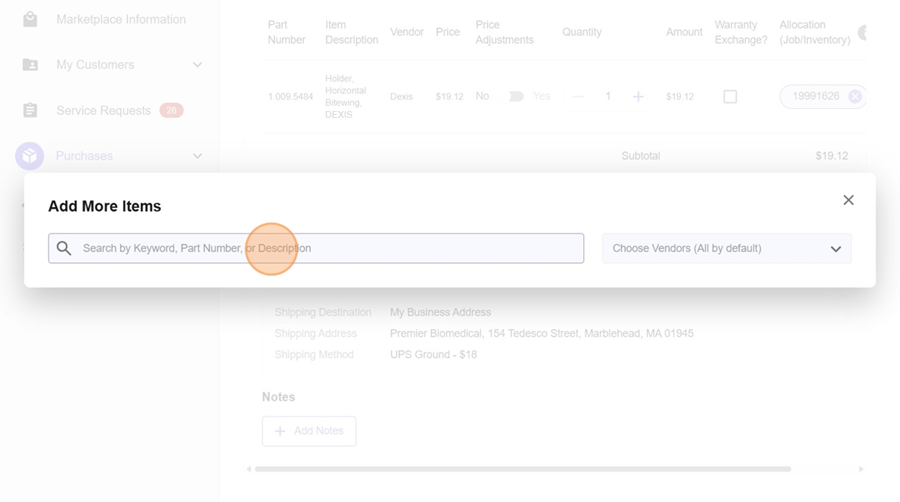
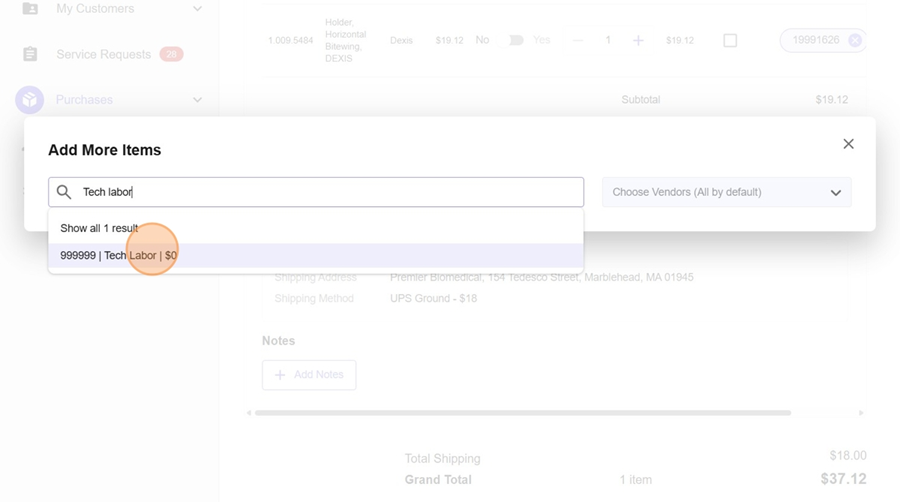
17. Type "Tech labor"
18. Click "999999 | Tech Labor | $0"
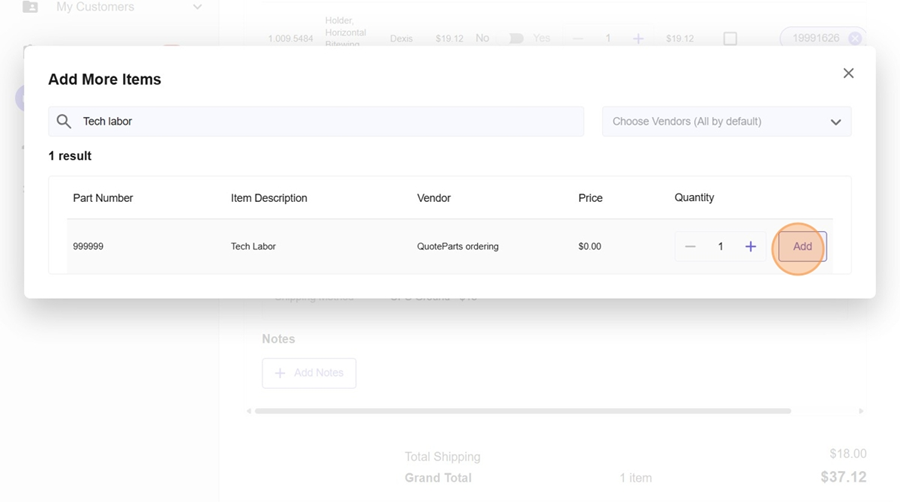
19. Click "Add"
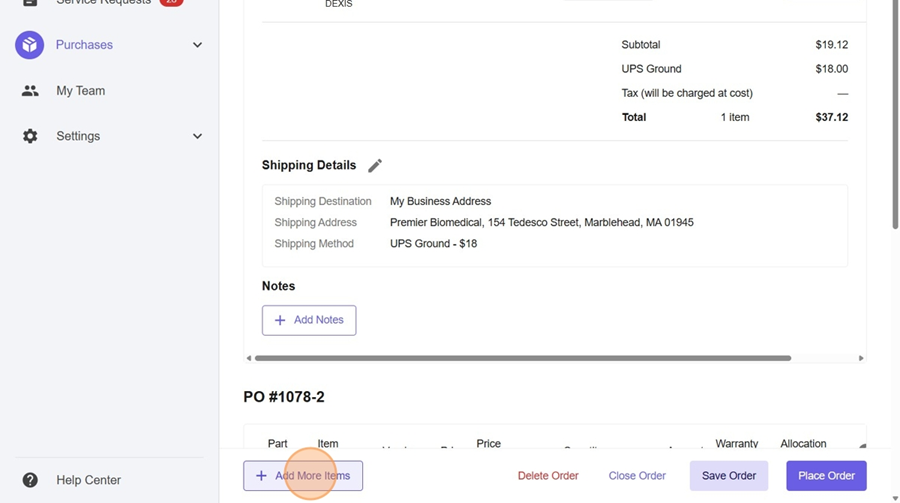
20. Click "Add More Items"
21. Click the "Search by Keyword, Part Number, or Description" field.
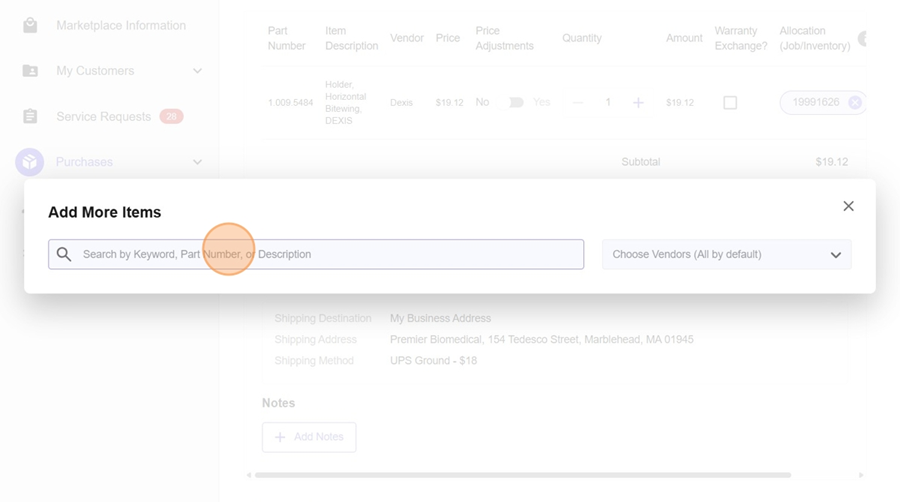
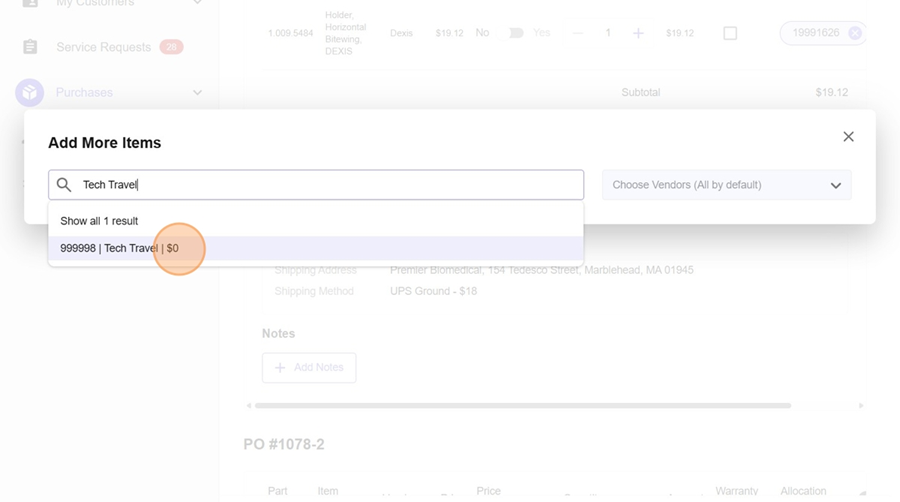
22. Type "Tech Travel"
23. Click "999998 | Tech Travel | $0"
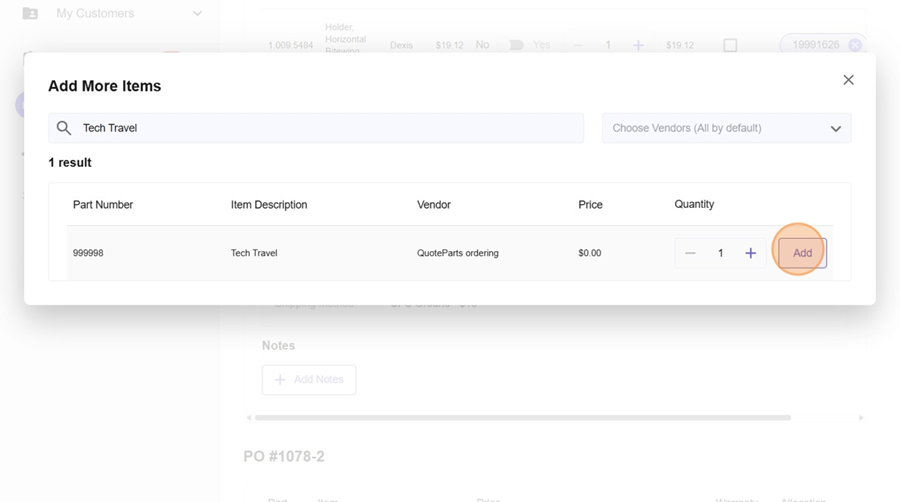
24. Click "Add"
How to Prepare and Send Your Quote
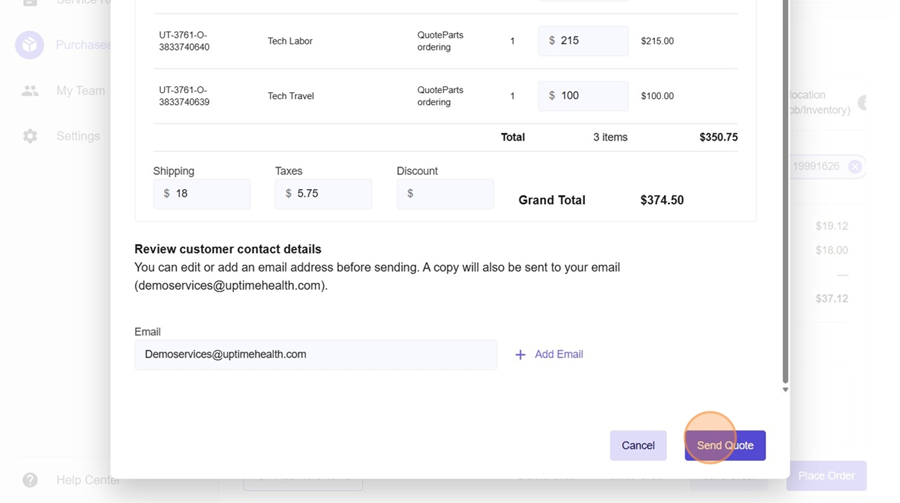
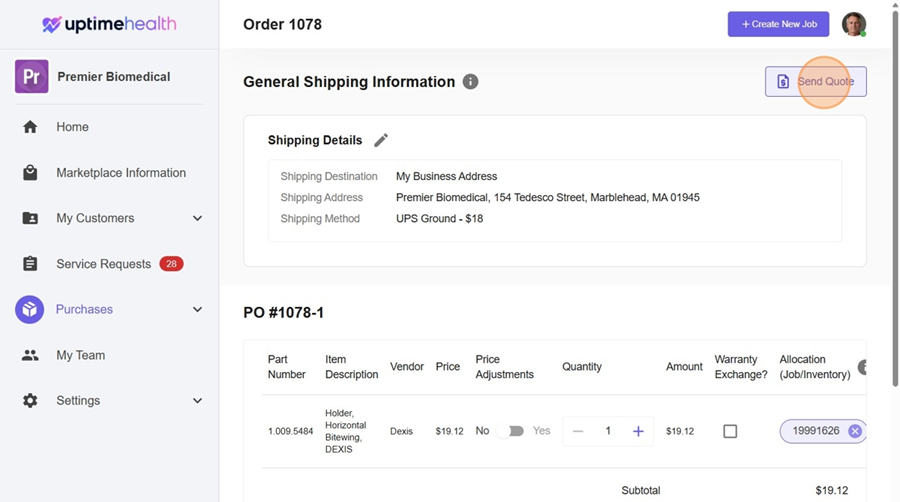
25. Click "Send Quote"
26. Click the Price Field - Add your price to the customer
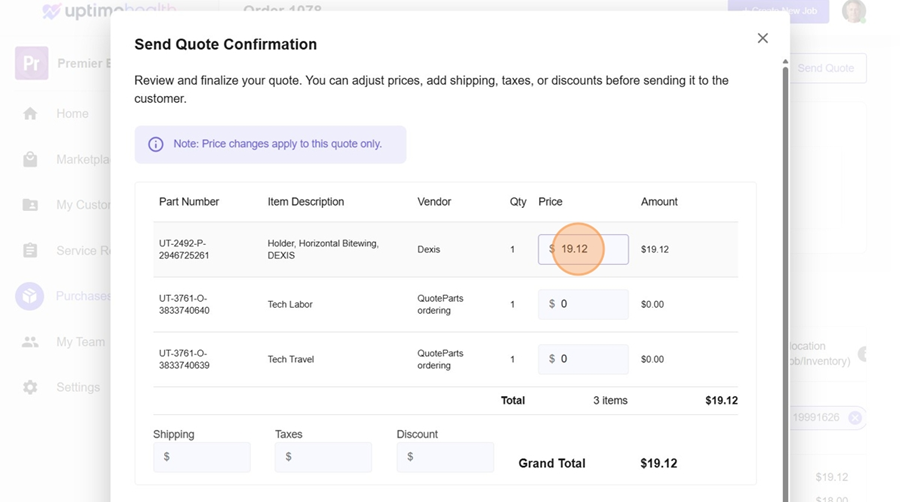
27. Repeat that action for each line item
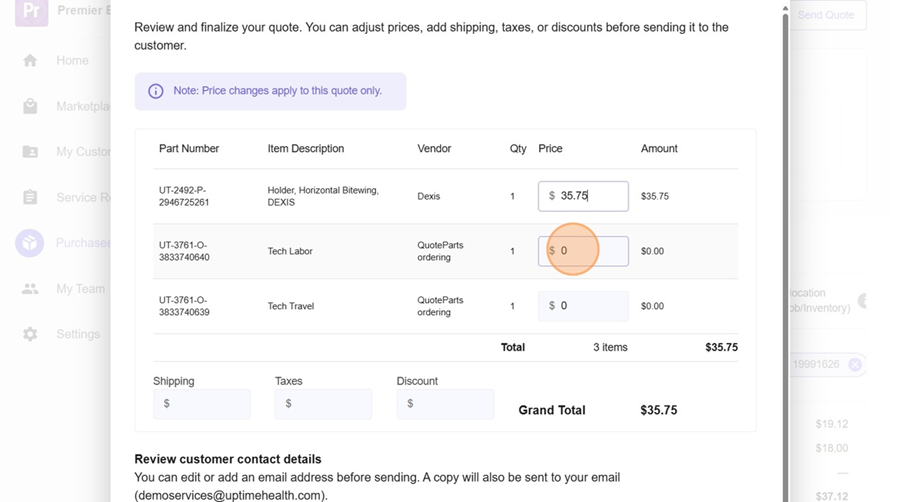
28. Click the "Shipping" field and add any shipping costs
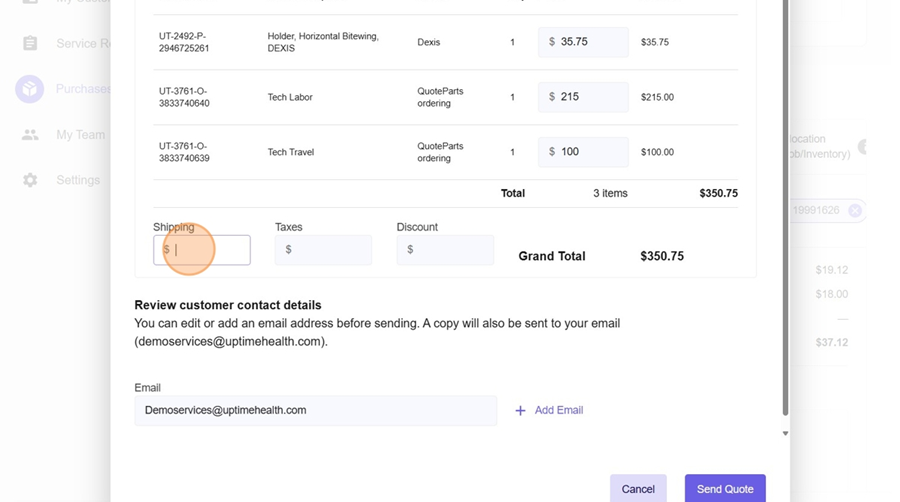
29. Click the "Taxes" field and add any taxes that would apply.
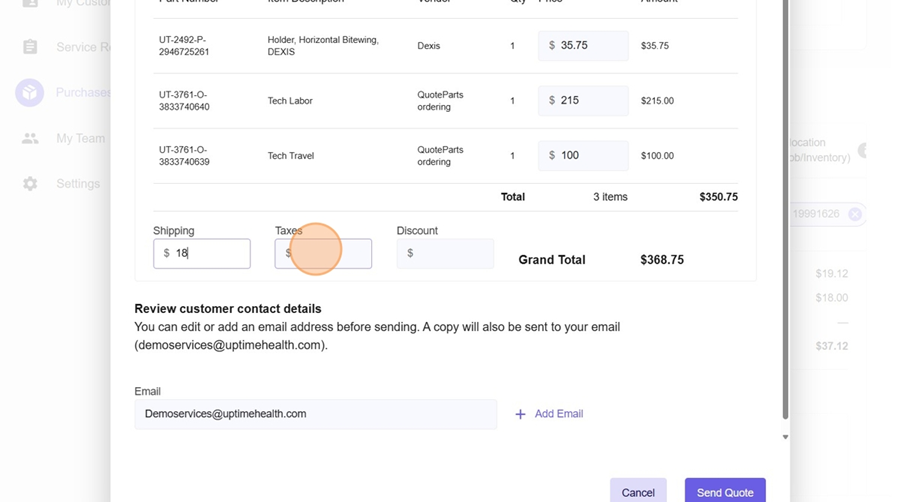
30. Click the "Discount" field and add any discount that you are offering on this quote.
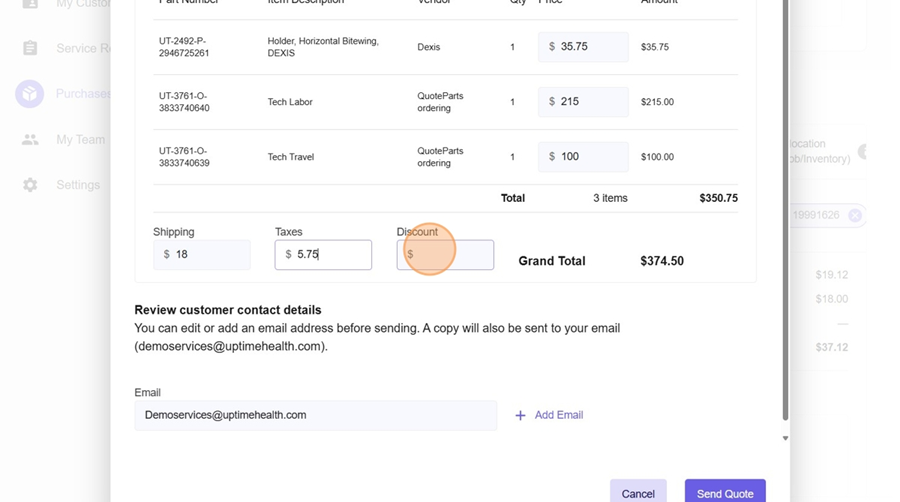
31. Click the "Email" field and confirm that this is your email address.
Note: By clicking + Add Email then you can send the quote directly to your customer by adding another email address.
Best Practice: Always email a copy to yourself as well as the customer if you are sending to multiple emails.
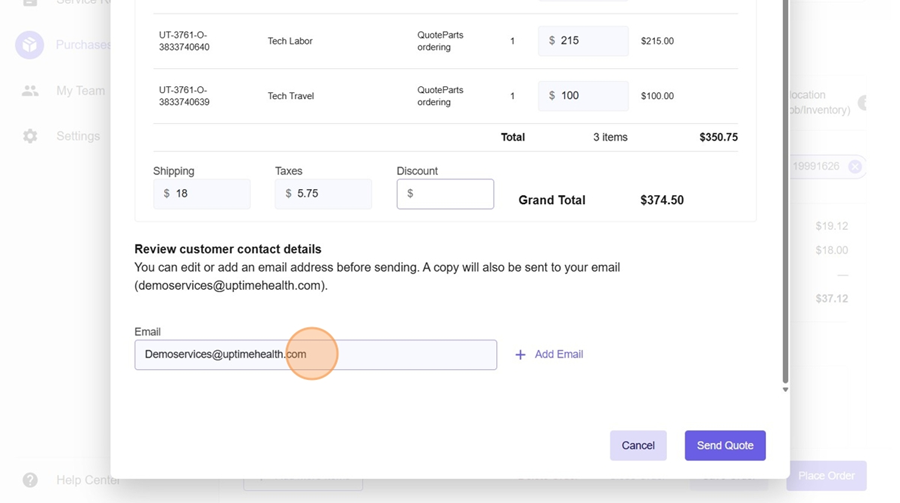
32. Click "Review and finalize your quote. You can adjust prices, add shipping, taxes, or discounts before sending it to the customer.
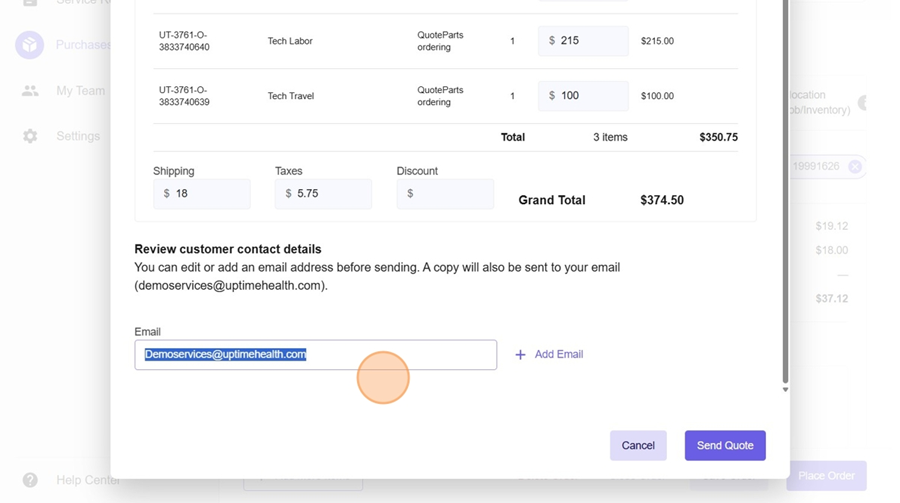
33. Click "Send Quote"