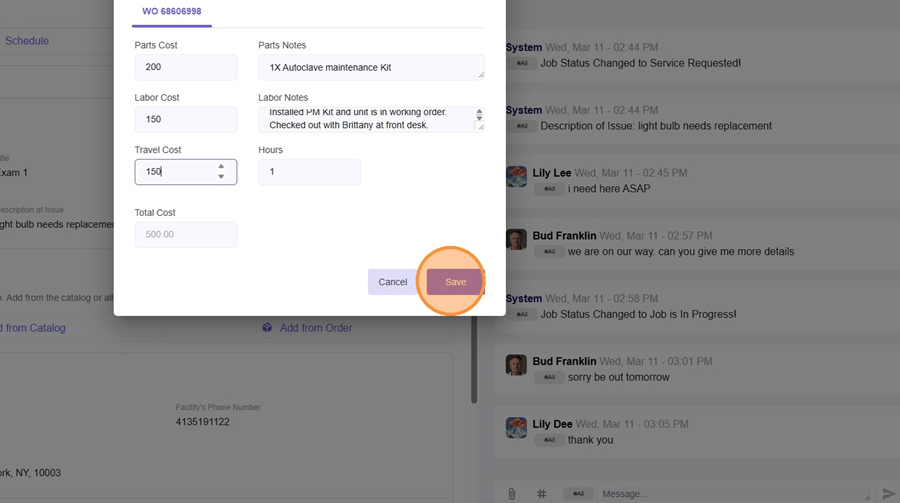
- First, you're going to go to your service request section and identify the request that you are looking to complete and invoice.
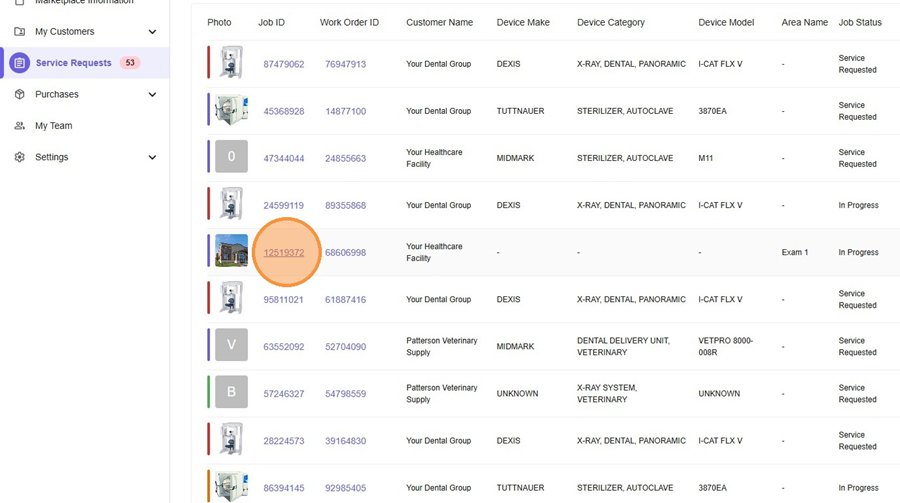
- Click "Complete Job"
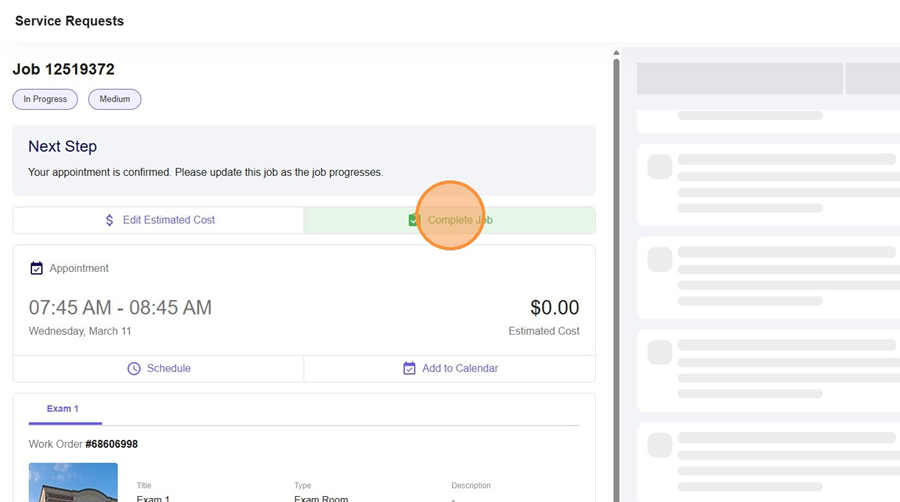
Invoice Entry Guidelines
When entering invoice information, it is important to ensure all fields are completed accurately and with sufficient detail:
1. Parts
-
Enter the total cost of all parts in the Parts section.
-
In the Parts Notes, provide a detailed breakdown including:
-
Each part used
-
Quantity of each part
-
2. Labor
-
Enter the total labor cost in the Labor section.
-
In the Labor Notes, clearly describe:
-
The work performed on-site
-
Any key actions taken or issues resolved
-
3. Hours
-
Input the total number of hours worked on-site in the Hours field.
4. Travel
-
Enter the total travel cost in the Travel Cost section.
Key Reminder:
All notes should be clear and detailed enough for internal teams and customers to fully understand the work completed and associated charges.
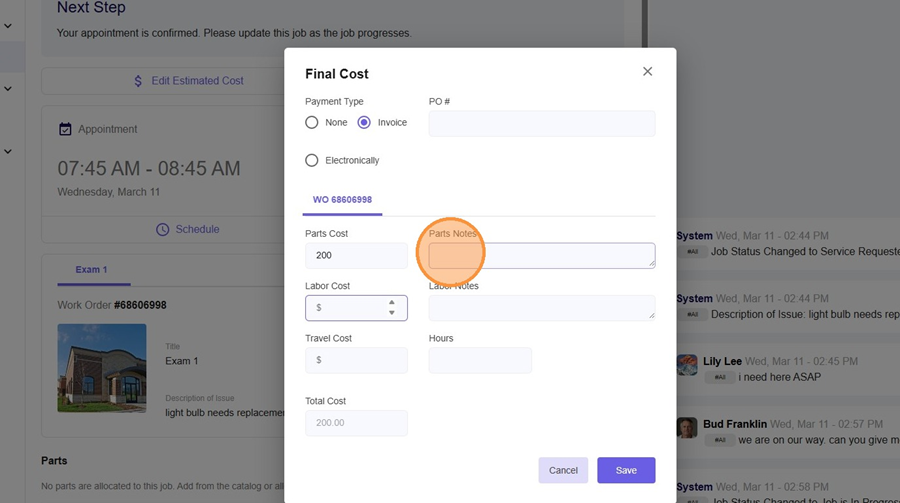
- Enter Total Parts Cost
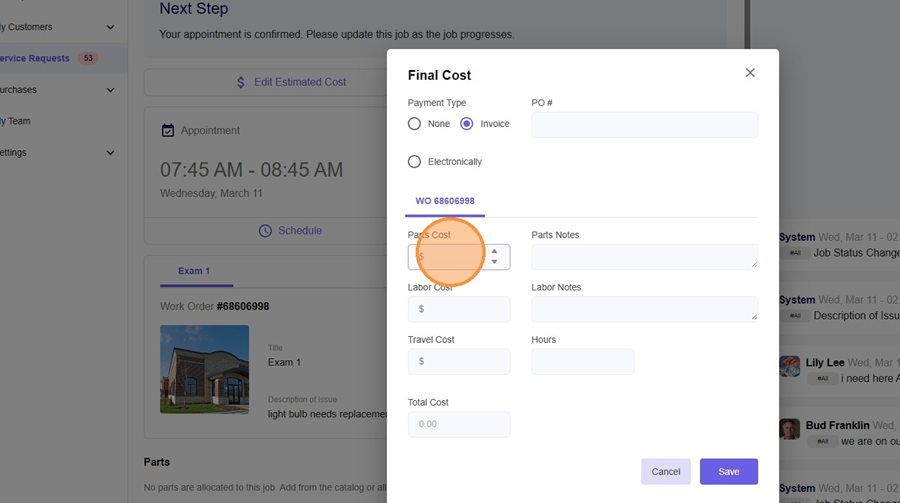
- Enter Parts Details - Itemized and quantity
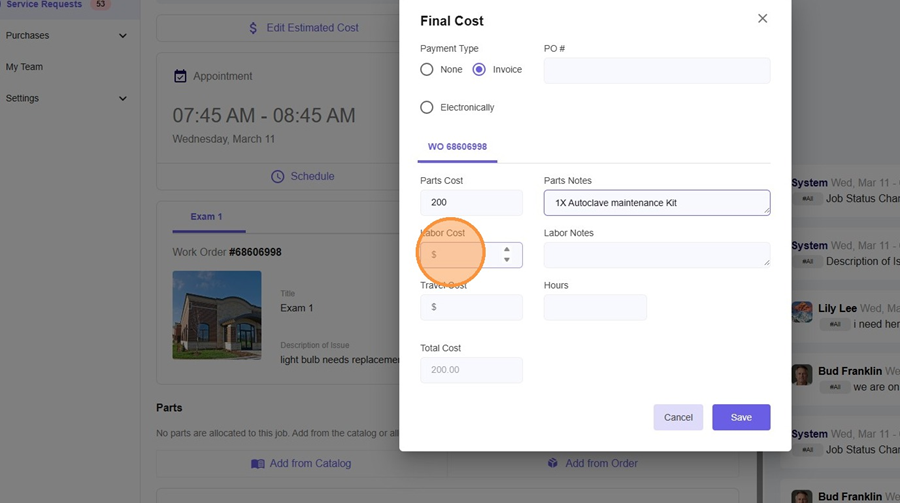
- Enter Total Labor Cost
- Click the "Labor Notes" field and enter detailed notes regarding the service:
Example - Arrived on-site to perform maintenance on unit. Installed PM Kit, and the unit is in working order. Checked out with Brittany at front desk.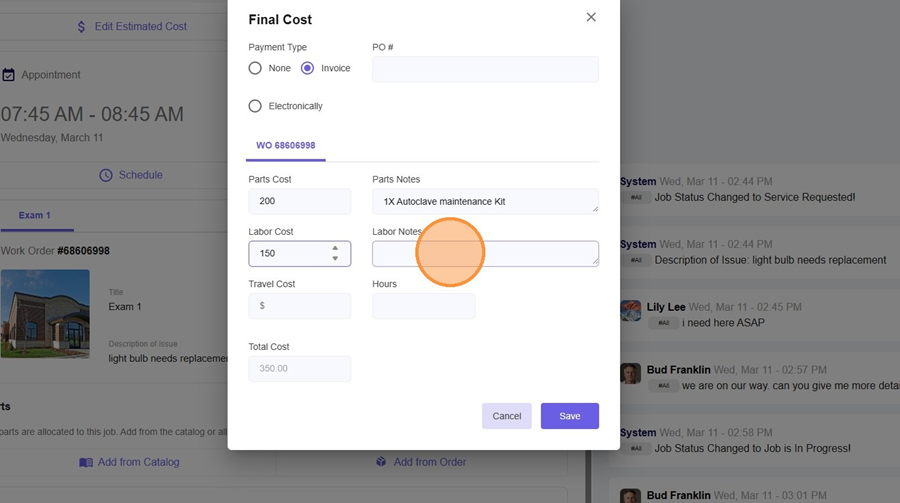
- Type in your total labor hours onsite.
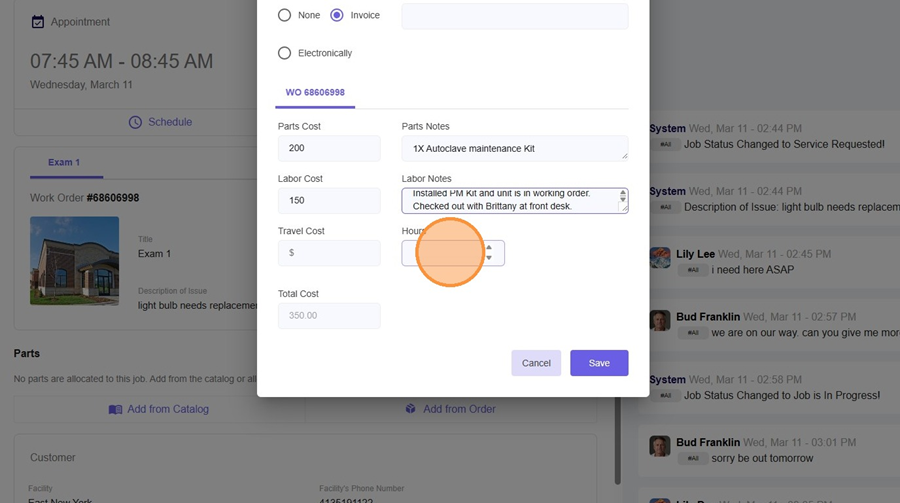
- Type in your total travel cost or trip fee.
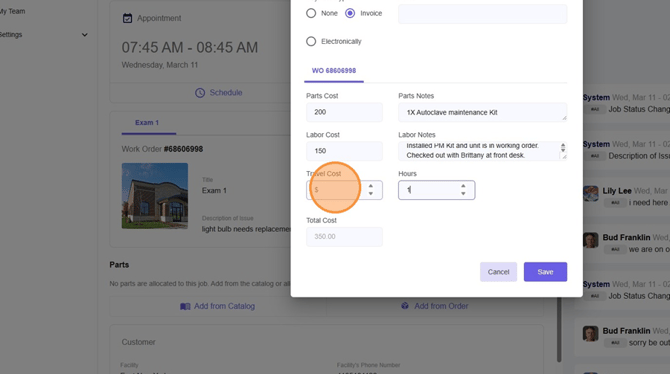
- You'll find your total cost under the total cost section which calculates from the above line items. This is the amount that you will get paid for the service is completed. Once you click save.