- Navigate to Purchases Section -https://uptimecontroller.com/app/purchase-items/orders?tab=drafts
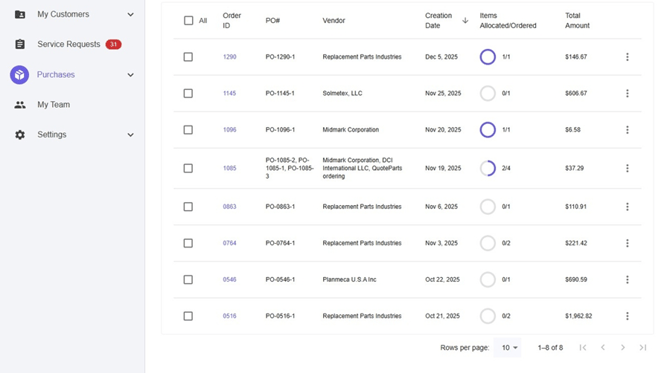
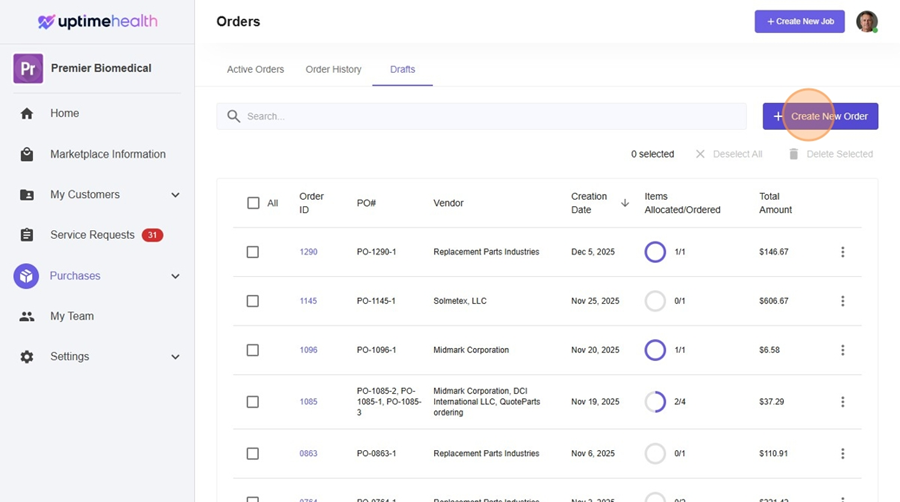
- Select create new order.
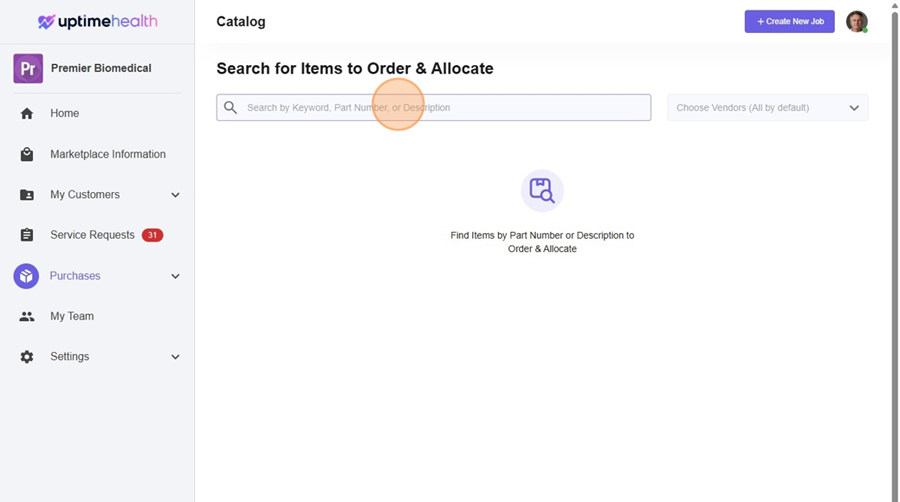
- Add your part number, keyword or description. You can also search by choosing vendor on the right hand side.
- Select your part.
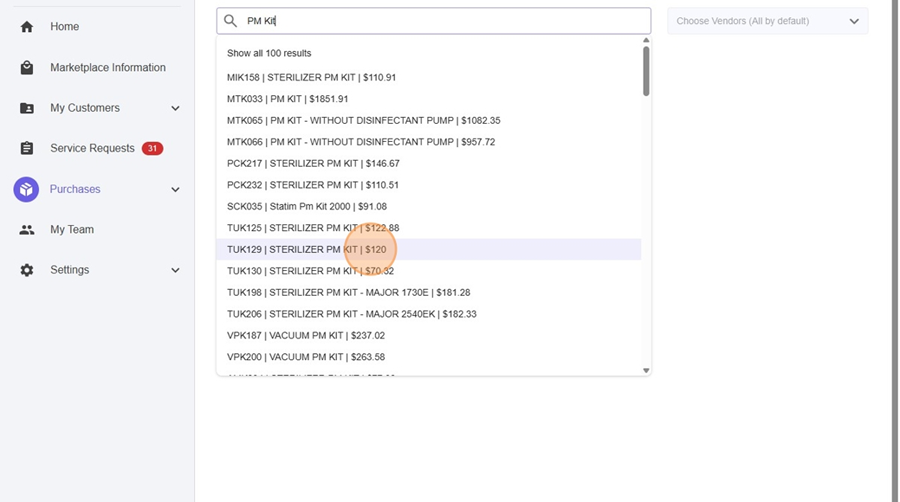
- Select add. This will add the part to the order.
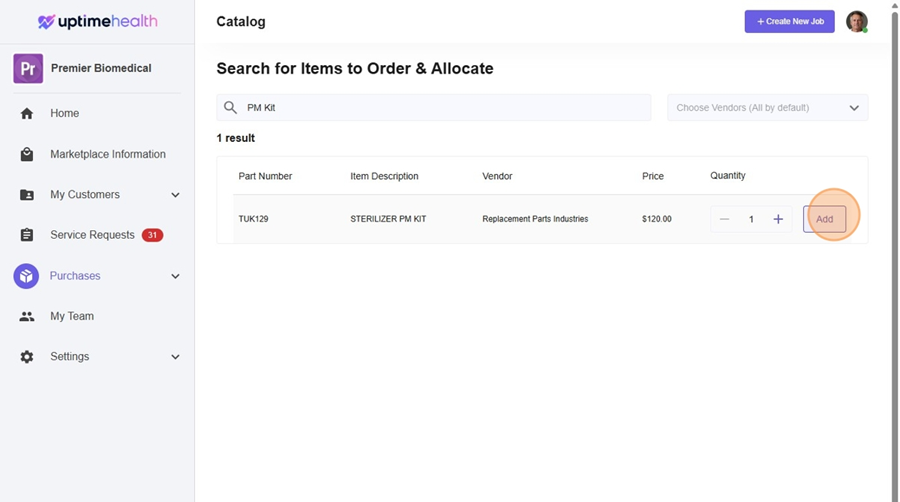
- Select Proceed to order items.
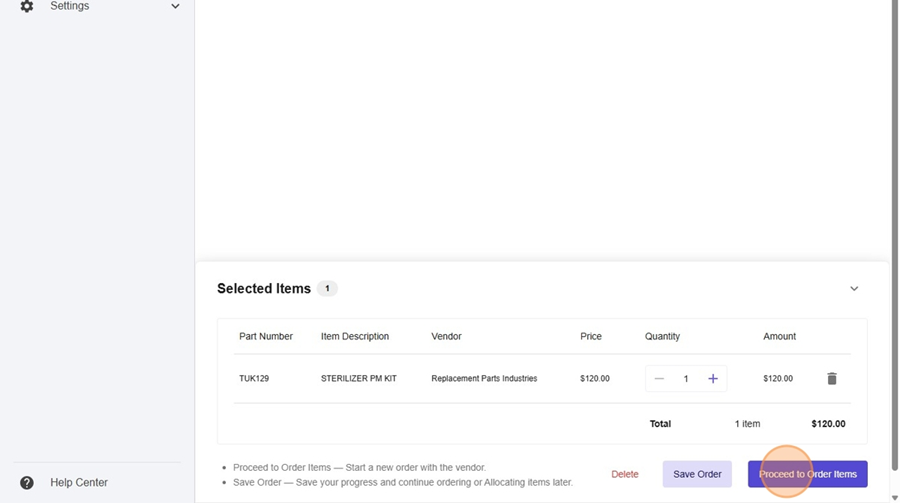
- Select add shipping details.
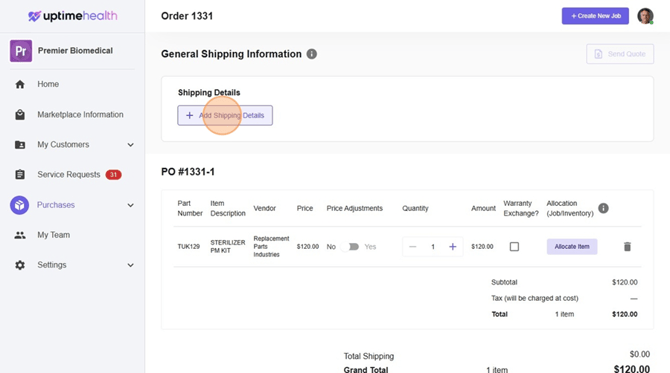
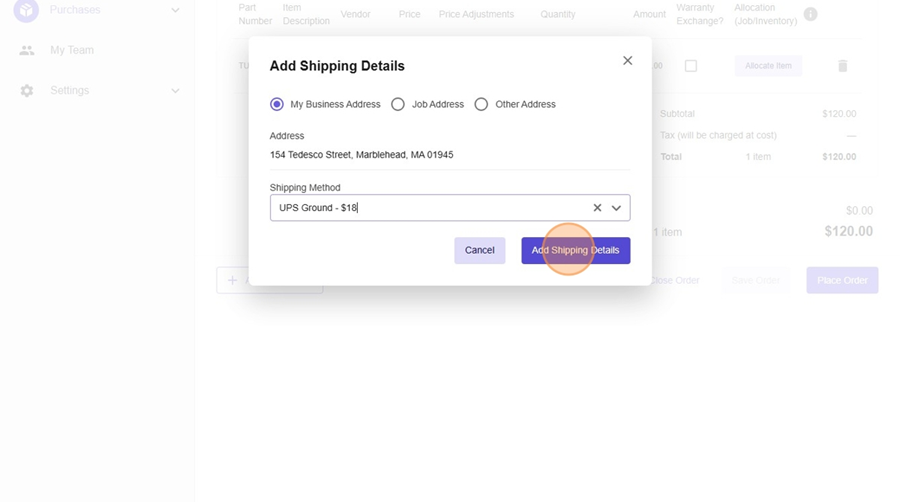
- Select shipping method.
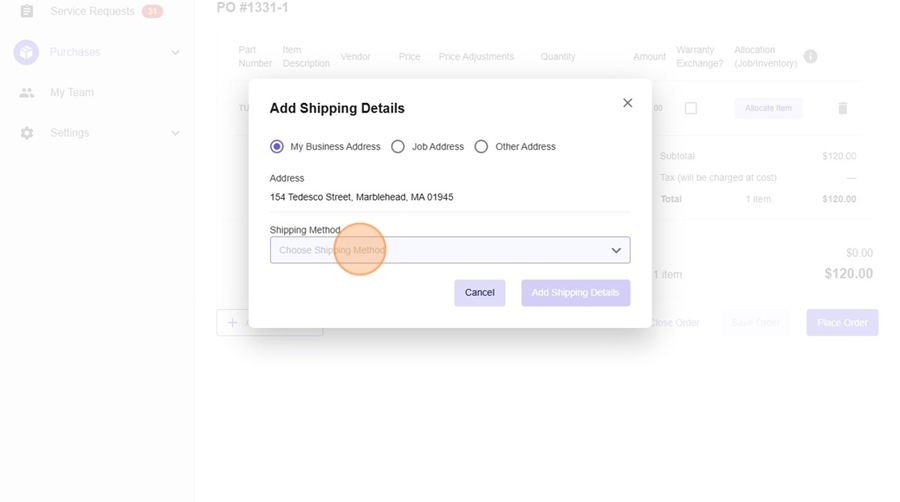
- Select Add Shipping Details.
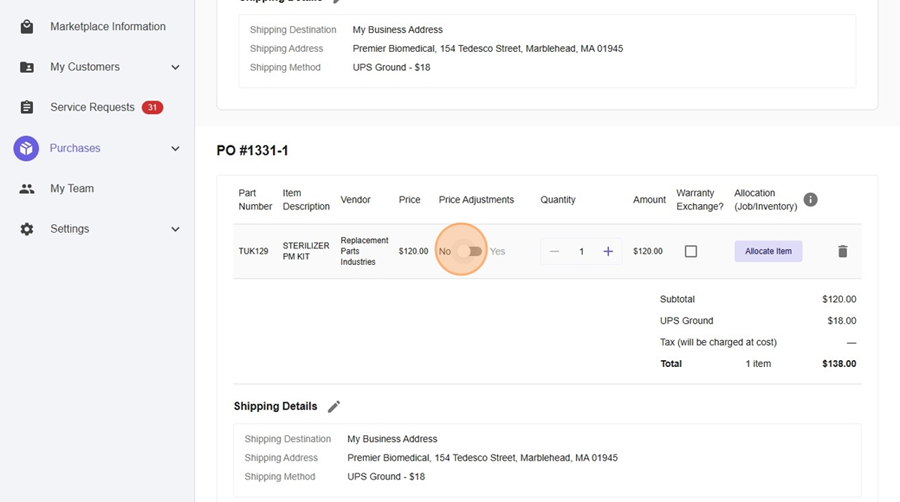
- Select price adjustment toggle.
- Click the "New Price" field and add the price adjustment amount.
Reminder - Parts are Wholesale + 15% ensure you take that into account when assigning price adjustment.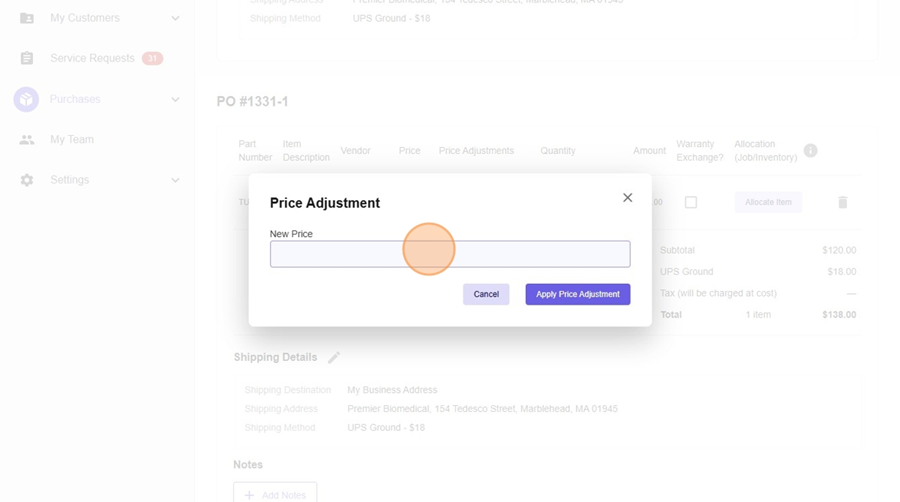
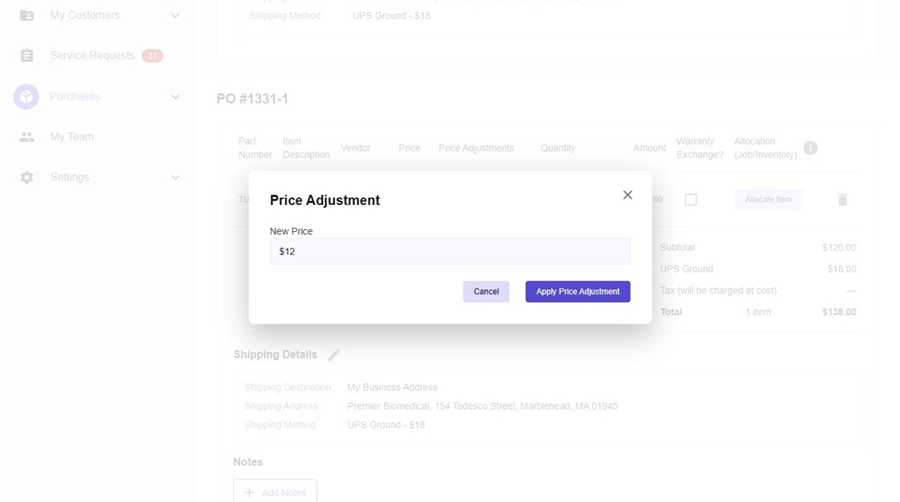
- Select Apply Price Adjustment.
- Select Add Notes.
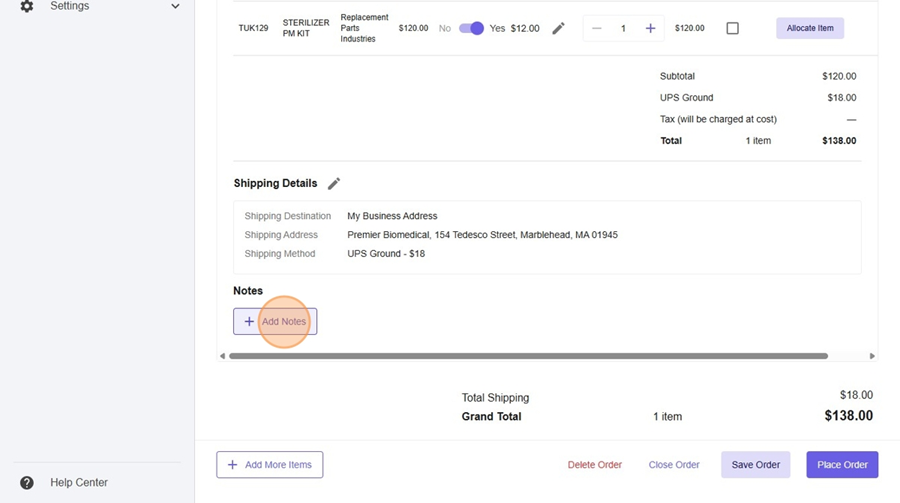
- Click the "UptimeServices notes" field.
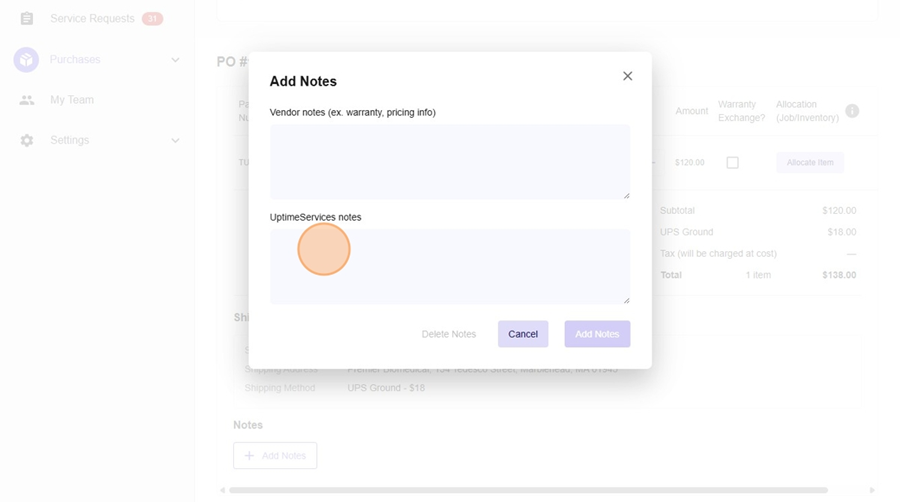
- Add specific details to why you requested a price adjustment. For example, you can add something around a discount provided by the vendor or other information.
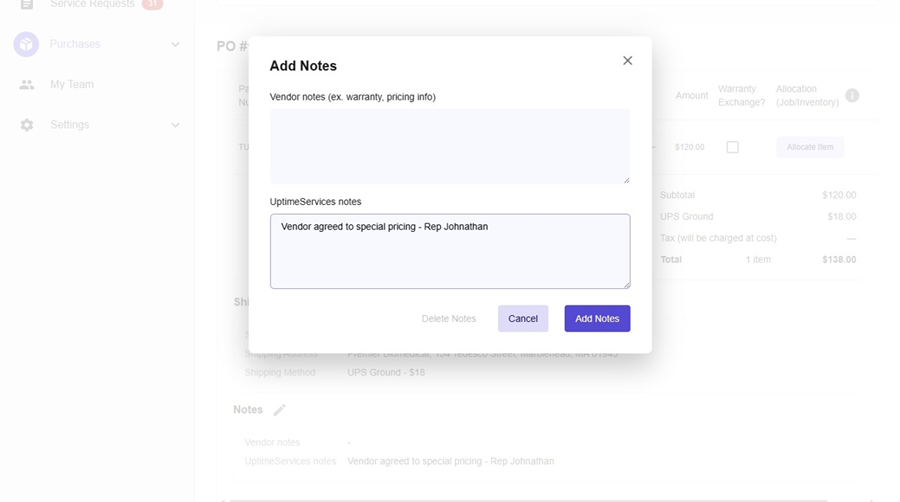
- Click "Add Notes"
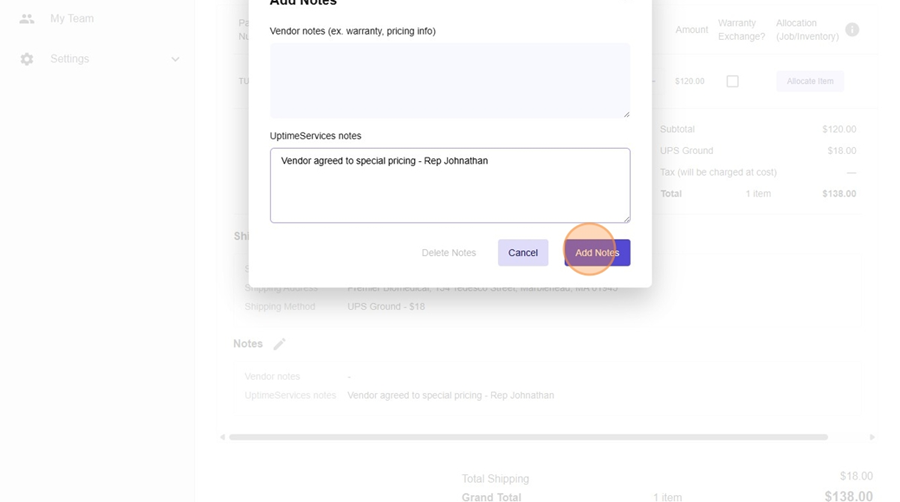
- Select place order.
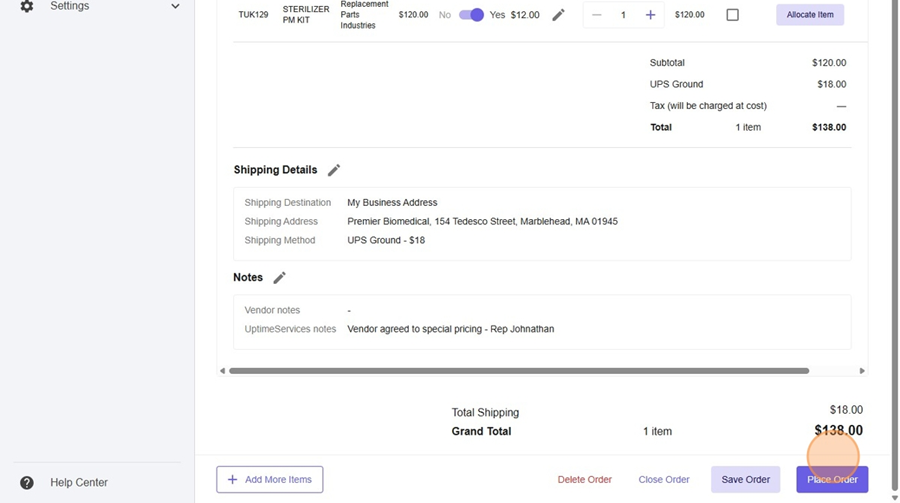
- By placing the order with a price adjustment, this will prompt the Purchasing Team to submit a price adjustment or communicate the new approved adjusted price to your team before proceeding with the order.
English
